



Let your AI work on WordPress, with guardrails

Choose what your AI may use: draft posts and pages, saved site rules and designs, plugin integrations and site maintenance. Review sensitive changes before they run, with a record of each request.

Your MCP URL will look like your-site.com/wp-json/mcpmate/mcp

Get MCPMate
  • WordPress plugin
  • No MCPMate account
  • No Application Passwords
  • Built-in hosting checks

Connect your AI client

Connect your AI client through MCP.

9 more AI apps

Client marks identify compatible applications; MCPMate is independent and not affiliated with their makers.

Real work, done by asking

Choose an example to see how an AI can work with your WordPress site through MCPMate.

Ask your AI

Choose an example

You asked: Give me a health summary of my WordPress site.

  • Reading your site’s details…

Your AI replied: WordPress 6.8 and PHP 8.3, running your active theme. Two of your 14 plugins have updates waiting.

Read only, nothing changed

Needs: nothing, always available

You asked: Which plugins have updates waiting? Update WooCommerce.

  • Checking your plugins…
  • Requesting the WooCommerce update…

Your AI replied: Two plugins have updates waiting. The WooCommerce update needs your OK: approve it in Activity → Approvals. The request expires in 15 minutes.

Waiting for your approval

Needs: commands plugin list and plugin update turned on

You asked: Write better SEO titles and descriptions for my five newest posts.

  • Reading your five newest posts…
  • Updating SEO titles and descriptions…

Your AI replied: Done. I rewrote the SEO title and meta description on all five posts. Nothing else on them changed.

Logged, with before and after

Needs: SEO operations enabled for Yoast, Rank Math, All in One SEO or SEOPress

You asked: Make a copy of my theme with a darker header and send me a preview link.

  • Copying your theme…
  • Editing the header styles in the copy…

Your AI replied: Your draft theme is ready. Here’s a private preview link; it expires in one hour. Your live site hasn’t changed.

Draft copy, live site unchanged

Needs: theme drafts turned on, and permission to edit themes

You asked: Build a landing page for our spring sale in Elementor.

  • Checking your Elementor widgets…
  • Building the page…

Your AI replied: “Spring sale” is built and saved as a draft. Open it in Elementor to review it, and publish when you’re ready.

Saved as a draft

Needs: Elementor, with the Elementor tools turned on

You asked: Find a calm photo of a lake on Unsplash and add it to my Media Library.

  • Searching Unsplash…
  • Adding the photo, with credit…

Your AI replied: I added a photo of a still lake at dawn to your Media Library, with the photographer’s credit.

Added to Media Library

Needs: your own Unsplash key, and media uploads turned on

Illustration. Your AI app’s replies will be worded differently.

Some examples need a tool turned on or another plugin installed.

How MCPMate works

  1. Step 1

    Connect your AI app

    Connect compatible AI clients to your WordPress website using MCPMate.

  2. Step 2

    Ask your AI to take action

    Use natural language to manage and interact with your WordPress website.

  3. Step 3

    Review and control changes

    Use MCPMate’s available approval and activity controls to maintain oversight.

More oversight for AI actions in WordPress

MCPMate adds visibility and approval controls to supported operations it handles. Actions from other plugins follow their own rules.

  • Without MCPMate

    • Less visibility into AI-driven changes.
    • No MCPMate approval workflow.
    • Limited centralized activity tracking.
    • Fewer centralized controls.
  • With MCPMate

    • Review requests for sensitive supported operations before they run.
    • See what a request will run, its preview and when it expires.
    • Inspect activity and before-and-after details for supported changes.
    • Change an app’s access or revoke its connection.

See what you’ll see in wp-admin

The screens for managing AI access, tools, activity and settings.

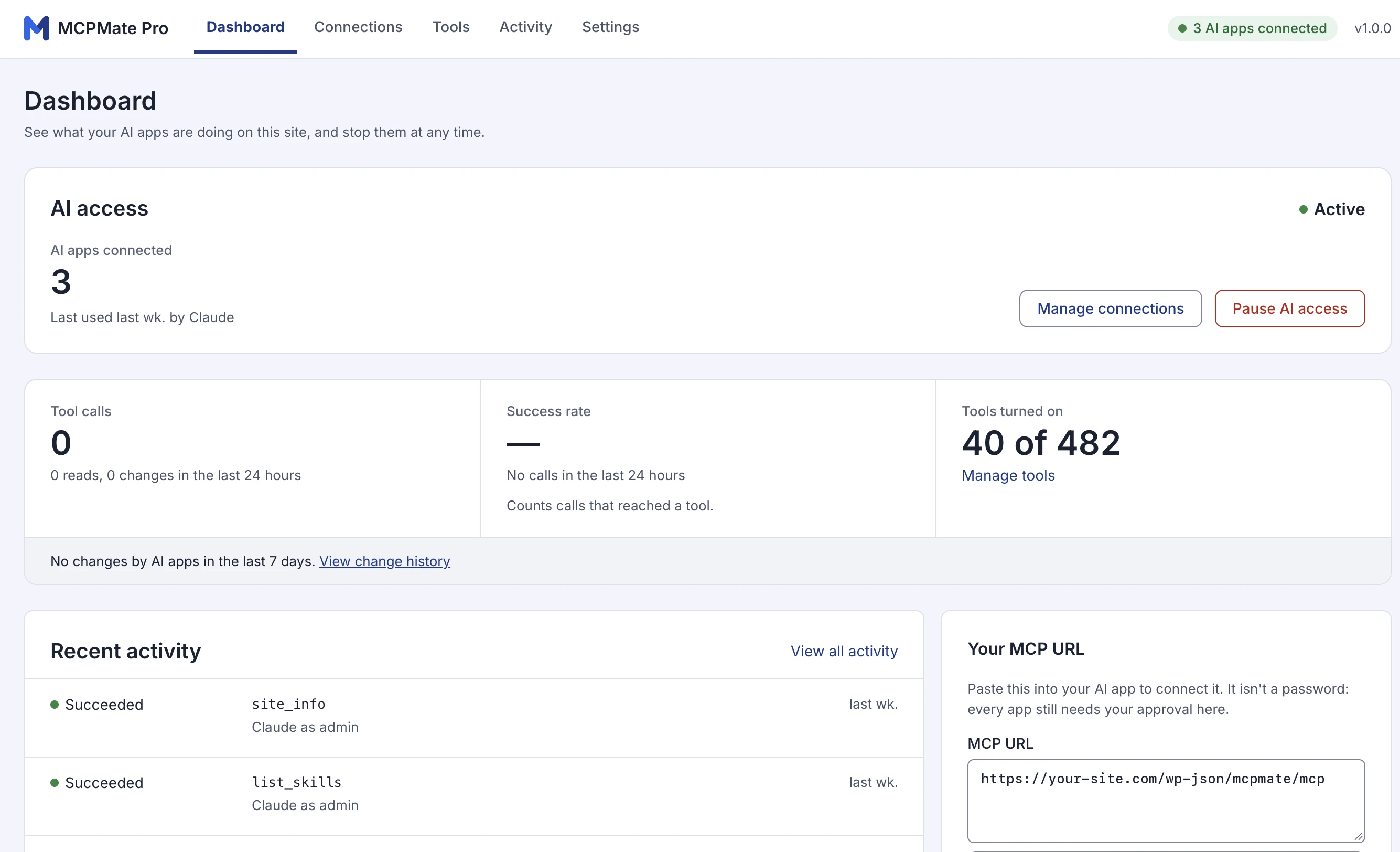
The MCPMate Dashboard: AI access is active with 3 AI apps connected and a Pause AI access button, tool calls and success rate for the last 24 hours, 40 of 482 tools turned on, recent activity and the MCP URL.

Dashboard

See whether AI access is active, how many tool calls ran and succeeded, and what your AI apps did last. Pause AI access stops every app at once.

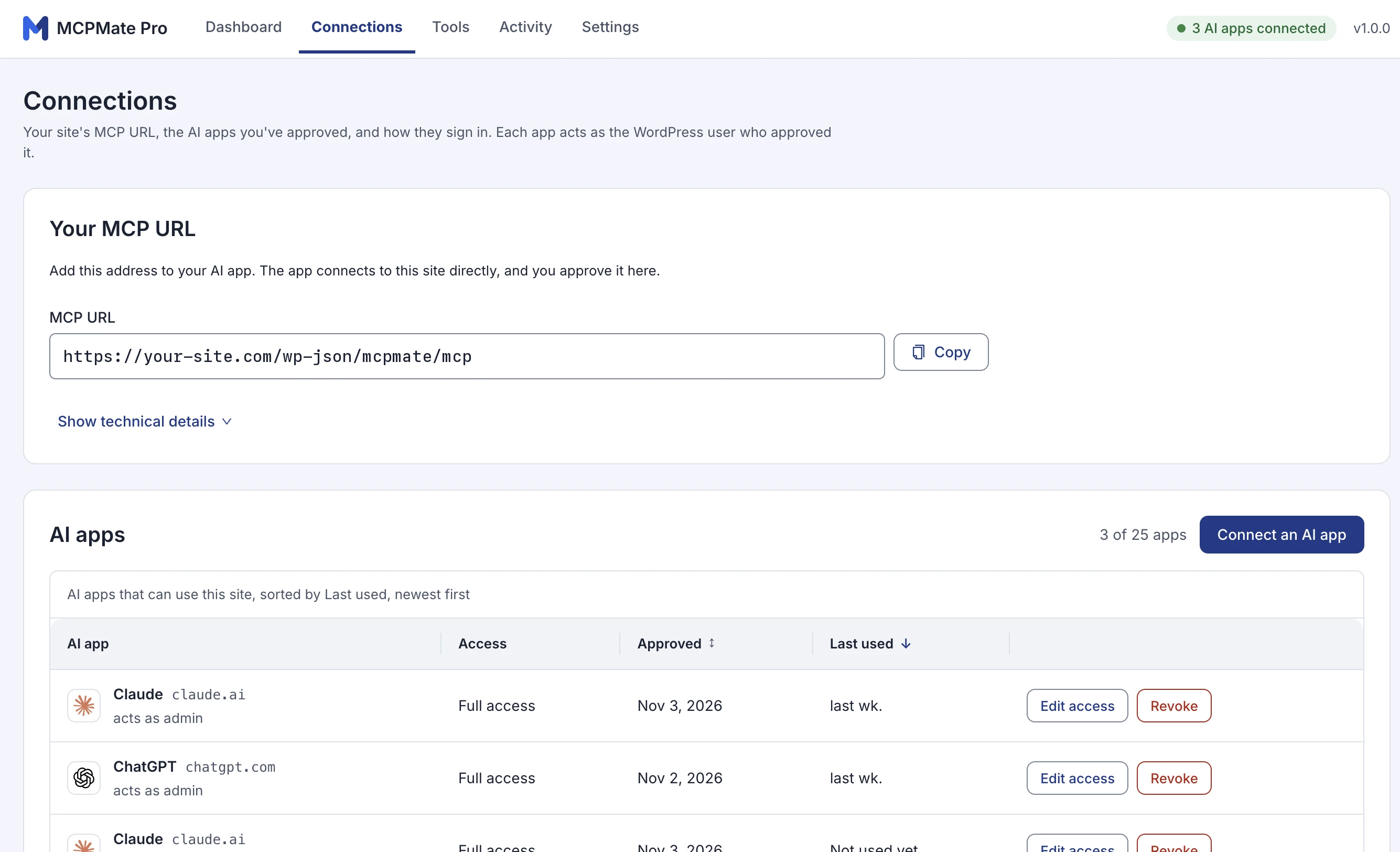
MCPMate Connections: the MCP URL with a Copy button, and a table of approved AI apps (Claude and ChatGPT) showing access level, the user each acts as, when it was approved and last used, with Edit access and Revoke buttons.

Connections

Copy your MCP URL, then review each AI app you approved: its access, the user it acts as and when it was last used. Edit its access or revoke it.

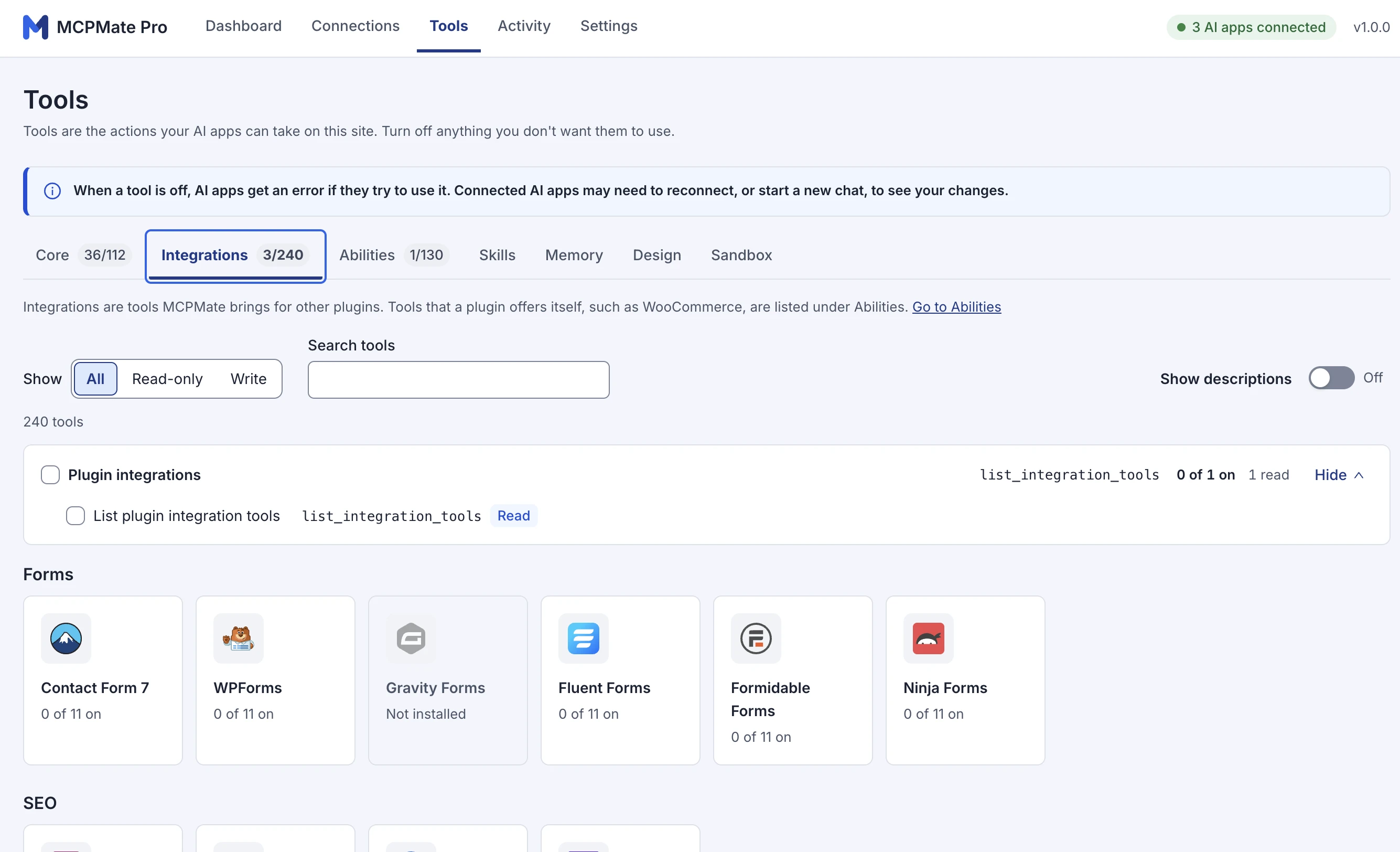
MCPMate Tools with the Integrations tab selected, filters for read-only and write tools, and cards for form plugins such as Contact Form 7 and WPForms.

Tools → Integrations

Browse the tools MCPMate adds for plugins such as Contact Form 7 and WPForms. Filter by read-only or write access, then enable the tools your AI apps need.

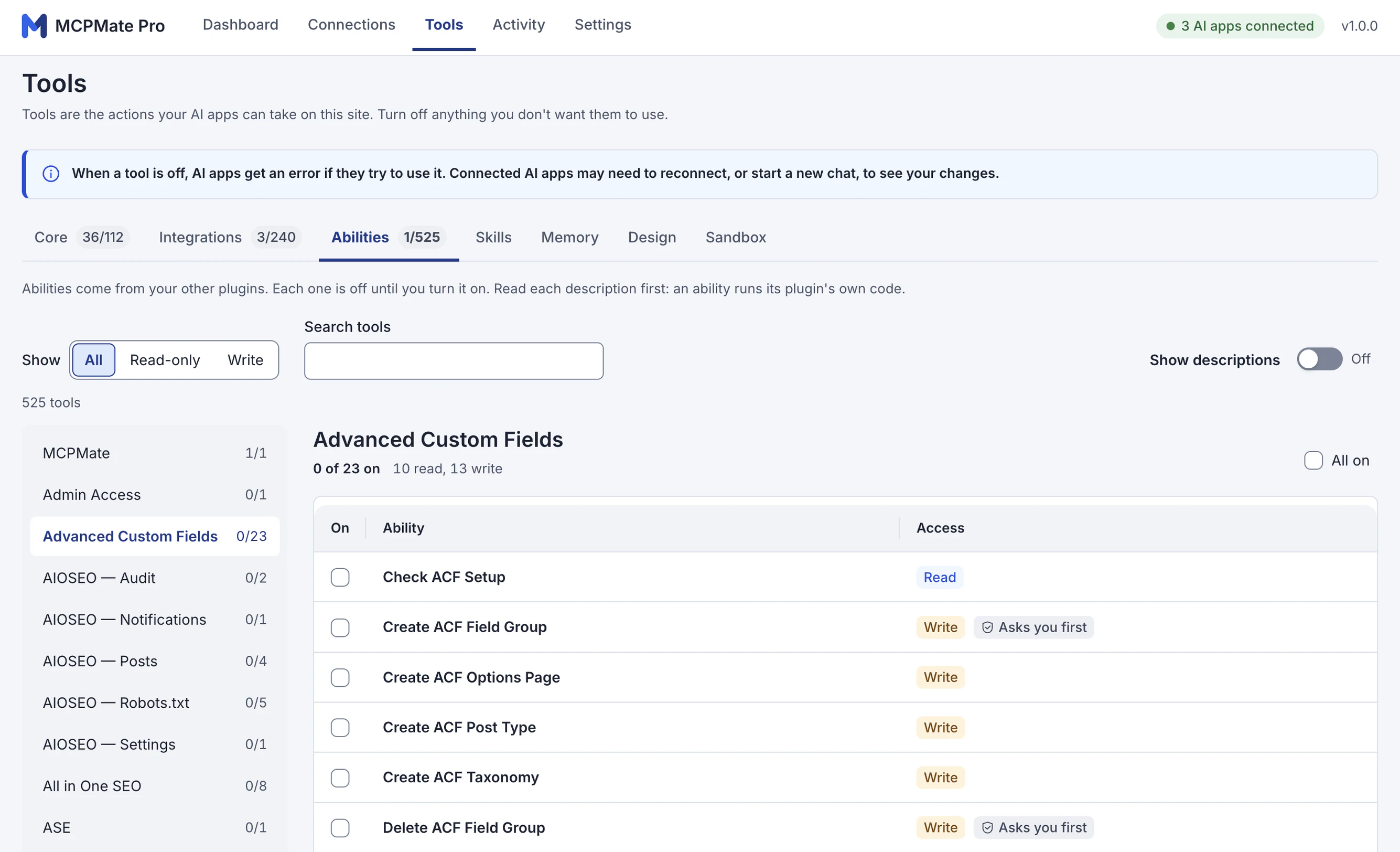
MCPMate Tools with the Abilities tab selected. The Advanced Custom Fields list shows individual checkboxes, Read and Write labels, and an Asks you first badge on some abilities.

Tools → Abilities

Abilities from other WordPress plugins are off by default. Filter by read or write, then check the descriptions and approval labels before choosing what your AI apps can use.

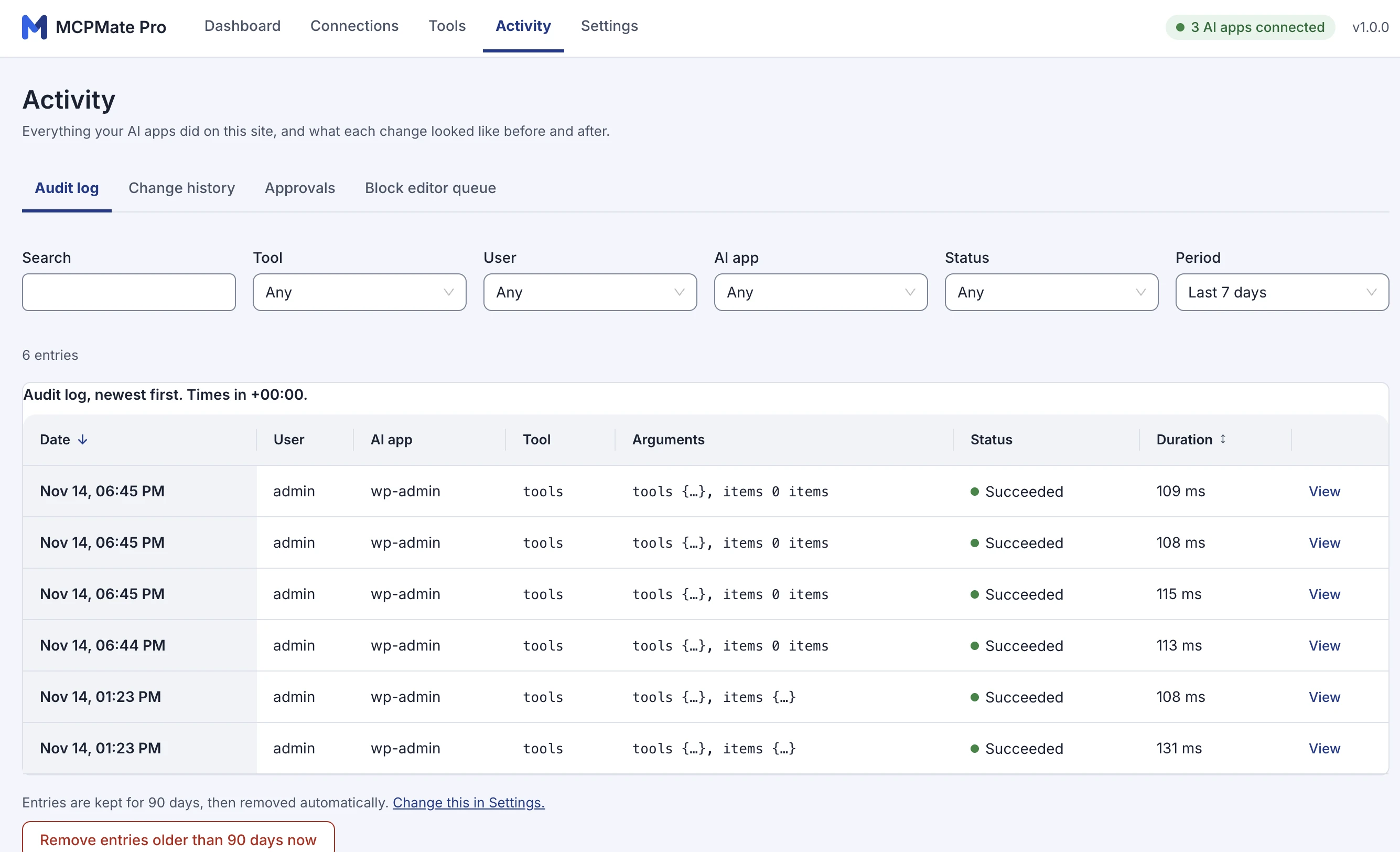
MCPMate Activity, Audit log tab: filters for tool, user, AI app, status and period, and a table of tool calls with date, user, AI app, tool, arguments, status and duration. Tabs for Change history and Approvals sit beside it.

Activity

Every tool call is in the audit log, with the user, the AI app, its arguments, the result and how long it took. Change history and Approvals are tabs on the same screen.

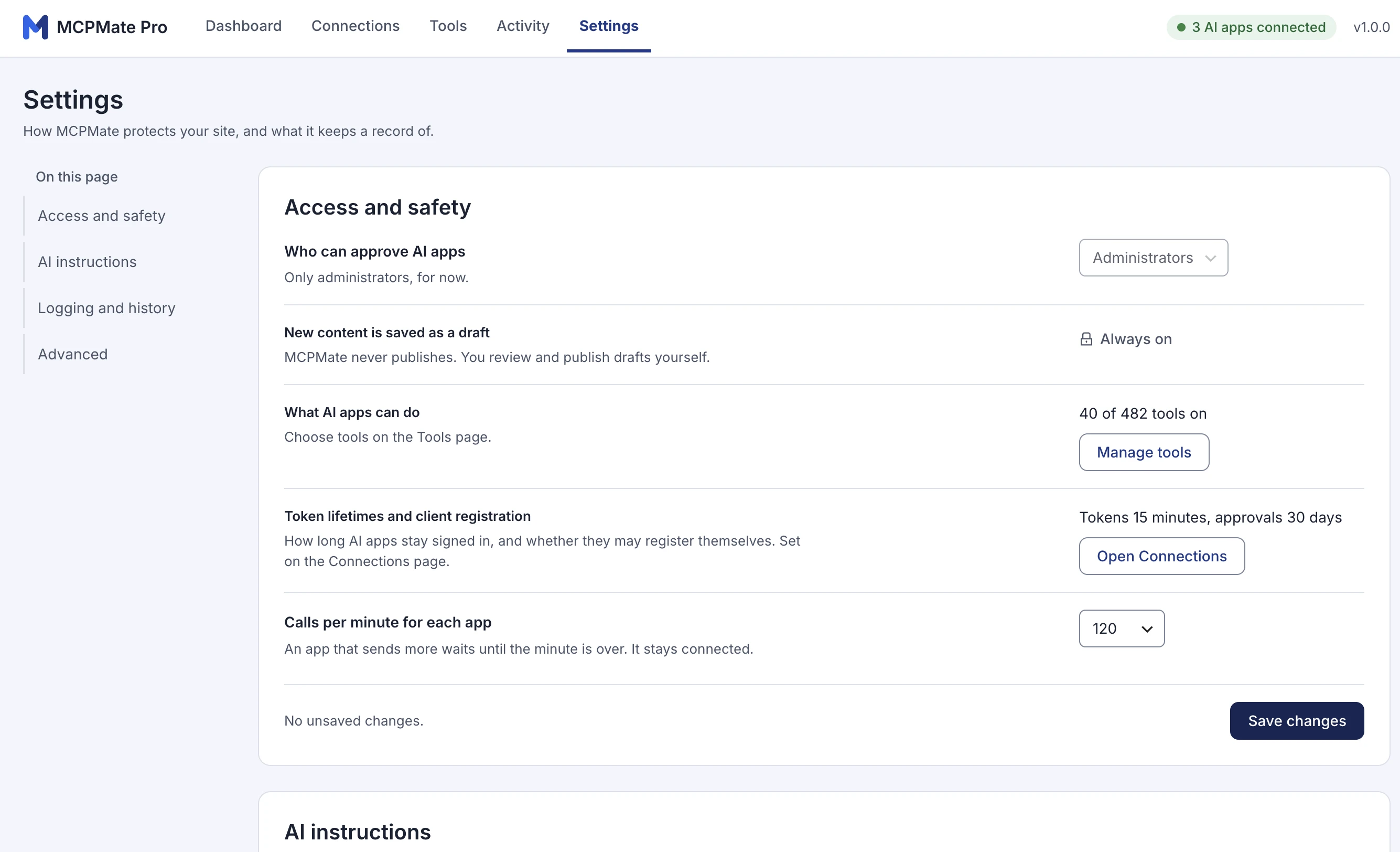
MCPMate Settings, Access and safety: who can approve AI apps, new content always saved as a draft, 40 of 482 tools on, token lifetimes, and calls per minute for each app.

Settings

Set who can approve AI apps and how many calls each app may make per minute. Saving new content as a draft is always on.

Screenshots of the MCPMate admin on a test site. Select an image to open it full size.

Built so mistakes stay small

These rules are built into MCPMate’s own tools. There’s no switch to turn them off, for you or your AI.

  • Drafts, not published.

    What the AI builds is saved as a draft. Publishing is yours.

  • Trash, not delete.

    The AI can move things to the trash. It can’t delete anything for good.

  • Big changes ask you first.

    Plugin updates, theme switches and site-wide text replacements wait for your approval in wp-admin. Requests expire after 15 minutes.

  • Theme edits happen in a copy.

    Going live makes a backup first, and you can roll back.

  • Only actions on the list.

    Named tools and commands, each checked against permissions and its own access switch.

  • Your AI can’t approve itself.

    Approvals happen only in wp-admin, signed in as you.

  • Content-loss checks.

    Targeted block edits compare text, media, links and blocks before saving. Unexpected loss is refused, and a live page is edited in a draft copy. See block editing.

Actions from other plugins that you turn on follow that plugin’s rules. We show this next to each one.

MCPMate› Activity › Approvals
Review request #41: Update plugin
What will run
plugin update woocommerce
Preview
WooCommerce 9.3.3 → 9.4.0
Requested by
Claude, acting as you
Expires
in 14 minutes
Reject requestApprove and run
Big changes wait here until you decide. Illustration with demo data.

Site tagline

Update
  • BeforeJust another WordPress site
  • AfterFresh bread every morning
AI app
Claude, acting as you
Tool
option update
Time
10:42
Every change keeps a copy of what it replaced.

Try it on your own site

Install the plugin, paste one address into your AI app, and approve it in WordPress. Pause or revoke access any time.