Imagine this. It’s 11 p.m. A client wants forty product descriptions rewritten by morning. You have Claude open in one tab and your WordPress dashboard in the other, and you can picture how much work the AI could save you.
Your finger hovers. What if it rewrites the wrong page? What if it publishes something half-finished? What if you can’t tell what it touched?
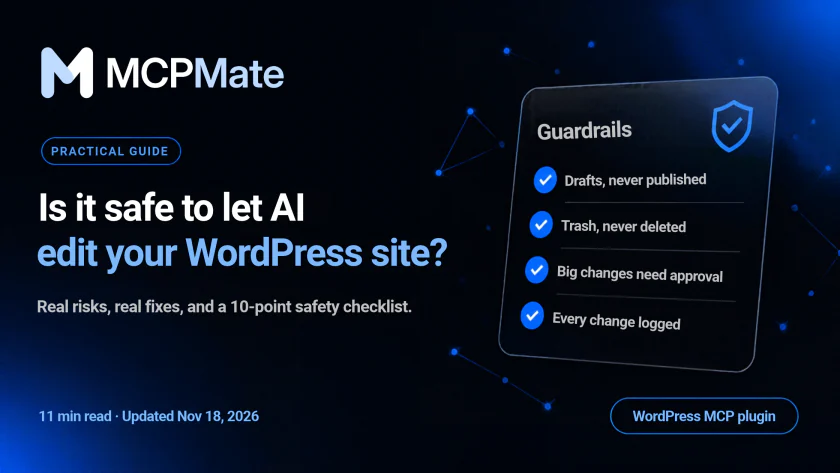
It can be safe to let AI edit WordPress when you set limits in advance. Give it only the access it needs, save new content as drafts, require approval for changes such as plugin updates, and keep a record of every action. The risk rises when an assistant can publish or permanently delete content on its own.
Decide what the AI is allowed to do, and who gets the last word.
What it means to let AI edit WordPress
When AI connects to a WordPress site, it can take actions there. Depending on the tools you enable, it might read posts, draft pages, update SEO titles, upload media, or request a plugin update. MCP, short for Model Context Protocol, is an open standard that lets apps like Claude and ChatGPT connect to tools outside the chat.
WordPress added the Abilities API in 6.9 and introduced a built-in AI Client in 7.0. The separate WordPress MCP Adapter can expose registered abilities as tools AI apps can discover and call. See the WordPress developer guide to the MCP Adapter.
An assistant that can act on your live site needs tighter limits than a chatbot you use to write copy.
Eight risks of letting AI edit WordPress
1. Accidental publishing
If the AI can publish directly, one misunderstood instruction can put a half-written page on your homepage before you have seen it.
2. Permanent deletion
Sending a post to the WordPress trash gives you a chance to put it back. After permanent deletion, you may need a backup to recover it.
3. Indirect prompt injection
WordPress sites can contain comments, form entries and profiles written by strangers. An AI reading that content can mistake embedded text for instructions and act outside the task you gave it.
OWASP lists prompt injection as LLM01 in its 2025 Top 10 for large language model applications. Restrict the tools the assistant can use and check approvals against your original request. See OWASP’s prompt injection guidance.
4. Too much account access
Use a dedicated account with only the capabilities the task needs when your connector supports it. That’s also the recommendation in WordPress’s MCP Adapter guidance.
5. A missing audit trail
Even when nothing breaks, “I think the AI changed some things” is a hard sentence to say to a client. The log should tell you what changed, when, and which app requested it.
6. Changes that affect the whole site
A plugin update, theme switch, or site-wide text replacement can affect every page. Test on staging and review the exact change before letting it run on a live site.
7. Bugs in the connector
In 2025, a flaw in the WordPress plugin AI Engine’s MCP feature allowed unauthorized changes in affected versions. The report is a reminder to check update history, support activity, and how a vendor handles security reports. See CVE-2025-5071.
8. Sensitive data leaving your site
An AI provider can process the content its app reads even when your connector is self-hosted. Before granting access to customer records, private posts, or order details, review the provider’s data controls and terms.
Safer vs. riskier WordPress AI setups
| Decision | Riskier setup | Safer setup |
|---|---|---|
| Access | Broad access to site tools | Read-only access or only the tools the task needs |
| Publishing | AI publishes directly | A person reviews the draft and publishes it |
| Deletion | AI can delete permanently | Removals go to the WordPress trash |
| Site-wide changes | Updates and bulk edits run immediately | Test on staging and approve before running on the live site |
| Activity | Changes leave no usable record | Review the audit log and any available before-and-after values |
| Recovery | No tested backup or way to stop access | Test an off-site backup and know how to pause or revoke access |
Start with whichever decision gives the AI the most reach today, then work through the checklist.
A 10-point WordPress AI safety checklist
- Back up first. Store a full site backup off-server and test that you can restore it.
- Try it on staging. Run your first experiments on a copy of the site.
- Use a dedicated account with limited WordPress capabilities where your connector supports it.
- Give the least access that works. Start with read-only access.
- Keep new content as drafts and have a person publish it.
- Send removals to the WordPress trash. Keep permanent deletion out of the AI’s toolset.
- Require approval for plugin updates, theme changes, and site-wide replacements.
- Log reads and writes. Open the log and check it after a task.
- Find the pause or revoke control before you need it.
- Keep WordPress, PHP, your connector plugin, and your AI app updated.
What good WordPress AI guardrails look like
MCPMate is a WordPress MCP plugin with built-in controls for how Claude, ChatGPT, and other AI apps work on a site. An administrator approves standard connections in wp-admin. Use Read-only or Custom access and turn on only the tools the task needs.
New content stays in drafts
MCPMate’s standard content tools save new posts and pages as drafts or pending review. You decide when to publish.
Removed content goes to the trash
MCPMate’s standard removal tools send items to the WordPress trash, where you can restore them.
Major changes wait for approval
Plugin updates, theme switches, and site-wide text replacements wait for approval in wp-admin. Each request shows what will run, includes a preview, and expires after 15 minutes. Only a signed-in person can approve it. See the approval workflow.
Write tools start off
Turn on tools individually as you need them. A few basic read-only tools, such as the site summary, are available by default.
Theme edits happen on a copy
Review a private preview of the draft theme first. Publishing requires approval and creates a backup that you can roll back to. A theme preview runs the draft’s PHP, so review those changes before opening it. See theme drafts and previews.
Activity records what ran
The Activity screen shows the app, WordPress user, action, and result. Reads are logged by default. Supported edits have before-and-after values so you can see what to put back. See change history.
Read mode and Pause control every app
Read mode makes all connected apps read-only. Pause AI access stops all of them without removing their connections. You can also revoke a single app.
WordPress handles the connection
In the standard setup, your app connects to your site and you approve it in wp-admin. It uses your existing WordPress account, so there’s no separate MCPMate login or password to paste into the app.
See how MCPMate protects your site for the safeguards and their limits.
What can still go wrong
Actions you enable from other plugins can follow different publishing and deletion rules. Review their permissions before turning them on. Some changes also need to be undone manually, even when you have an audit record.
A request surprises you
An AI can misunderstand you or encounter instructions in untrusted content. If the request in wp-admin differs from the task you gave it, reject it.
Someone approves without reading
Check the action, the affected items, and the preview before approving. The approval dialog is your chance to catch a mistake.
The AI edits the wrong thing
A request like “update the footer” can mean different things. Name the page or template, check the draft, and look at the log before widening access.
Hosting or plugins have unrelated bugs
Keep backups on a schedule you can live with and test recovery before an incident.
Which WordPress tasks to hand over first
Build trust in layers. Start with tasks that change nothing, then choose a small write you can inspect.
- Day 1. Connect with read-only access and ask for a site health summary.
- Days 2–3. Ask it to review five posts and suggest improvements.
- Days 4–5. With the relevant tool enabled, update SEO titles on a few posts and compare the before-and-after values in the log.
- Week 2. Try a draft landing page. Test a plugin update on staging before making the same change on the live site.
Give the assistant one job at a time, review the result, and keep a backup. If you want to try this workflow, download MCPMate or follow the AI app setup guides.
Frequently asked questions
Is it safe to let AI edit my WordPress site?
It can be safe when you limit access, save new work as drafts, require approval for major changes, and review the audit log. Test on staging and keep a backup before granting write access.
Can AI delete my WordPress content?
That depends on the tools it can use. MCPMate’s standard removal tools send items to the WordPress trash. Actions you enable from other plugins can follow different rules.
What is prompt injection in WordPress AI tools?
Prompt injection can happen when an AI mistakes text in content such as a comment or form entry for an instruction. Limit the tools it can use and review unexpected requests before they run.
Should I give AI access to my WordPress administrator account?
Use a dedicated account with the minimum permissions where your connector supports it. MCPMate’s standard sign-in requires approval from a WordPress administrator. Start with Read-only or Custom access and enable only the tools you need.
Is MCP safe to use with WordPress?
MCP is a standard for connecting AI apps to tools. Evaluate the WordPress connector’s authentication, exposed tools, permissions, approvals, and audit log.
Can I give AI read-only access to WordPress?
Yes. Choose Read-only for an individual MCPMate connection, or enable site-wide Read mode to block writes from every connected app.
Do I need a backup before letting AI edit WordPress?
Yes. Keep a full backup off-server and test a restore. That protects you from accidental edits as well as unrelated failures.
Do WordPress’s built-in AI features make AI editing safer?
The built-in AI Client and the Abilities API provide a common foundation. The separate MCP Adapter can expose registered abilities. The connector and the permissions you grant determine what the AI can do.
Where does the data my AI reads go?
Your AI provider may process anything the app reads, under its own terms. MCPMate connects the app to your WordPress site. Check the AI provider’s data controls before giving it access to sensitive information.
What’s the safest first task to try?
Ask the AI to summarize your WordPress site’s health with read-only access. Then open the Activity screen and check what it called.