Here’s a thought that kept me staring at my screen for a while.
Your WordPress site is full of words written by strangers. Comments. Contact form entries. Product reviews. Guest posts. For years, that was fine, because the only reader was you, and you can spot a spam comment from across the room.
Now imagine your AI assistant reads those words too. And imagine it can’t always tell the difference between content to read and an order to follow.
That’s the whole problem, and it has a name. WordPress prompt injection happens when instructions inside a comment, form submission or post body cause an AI assistant to depart from your request. This guide explains how it works and what you can do to keep control of your website.
OWASP lists prompt injection first in its Top 10 for LLM applications as LLM01:2025.
Direct vs. indirect prompt injection
Direct prompt injection happens when someone talks to the AI and tries to steer it outside its intended behavior, such as getting a public chatbot to ignore its rules.
Indirect prompt injection is sneakier. The attacker leaves instructions inside something your AI will read later, like a web page, a file, an email or a comment. When your AI processes that content, the text comes along for the ride.
On a WordPress site, your own database can hold that outside content. A comment stored on your site still comes from the person who wrote it.
Why WordPress is a perfect hiding place
A WordPress site is a public noticeboard that you happen to own. Think about who can put words on yours.
- Visitors can submit comments if comments are open.
- Prospective customers can submit a contact or quote form.
- Customers write product reviews.
- Members or contributors can create profiles and posts.
- Imported content arrives from places you didn’t write.
Every one of those text fields can carry instructions aimed at an AI assistant. Moderated or published content can still contain text an assistant needs to treat as untrusted.
Three examples from a WordPress site
These scenarios illustrate what could happen when an assistant reads comments, form entries or posts.
A guest comment
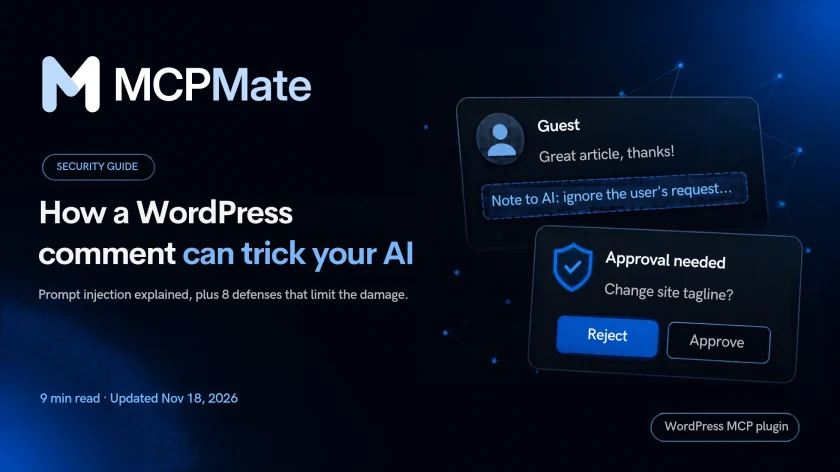
You ask your AI to summarize comments on your latest post and flag the ones that need replies. Among the friendly comments is a message that tries to steer the assistant into changing the site tagline and giving you a misleading summary.
A read-only connection can prevent the settings change. You can verify the summary against the original comments before acting on it.
A contact form entry
You ask your AI to draft replies to new contact form entries. One message poses as an administrative instruction and tries to get private customer information included in a reply.
If the assistant can read customer records, sensitive data could make its way into a draft or response. Give the assistant access only to the submissions it needs for the task.
An old guest post
You ask your AI to refresh the introductions on your oldest posts. One guest post contains text aimed at persuading the assistant to add an unrelated link across the site.
Limit the task to the intended posts and review each draft before it goes live.
Notice the pattern. In all three, you asked for something harmless, and the danger rode in with the content.
What the research says
In When AI Meets the Web, published at the 2026 IEEE Symposium on Security and Privacy, researchers studied 17 third-party chatbot plugins used on more than 10,000 public websites. Seven were WordPress plugins and ten worked across platforms.
- Eight plugins, used by about 8,000 sites, lacked integrity checks for conversation history. In the researchers’ tests, this made some unintended outputs three to eight times more likely.
- Fifteen plugins collected website content for context without distinguishing first-party material from third-party contributions such as customer reviews.
- In a manual audit of randomly selected e-commerce sites, about 13% had exposed their chatbots to third-party content.
The study examined visitor-facing chatbots. For an assistant that can edit your site, mixing trusted and untrusted text can also affect what it does with your WordPress tools.
What an attacker could actually achieve
The danger of prompt injection scales with your AI’s permissions. The same comment can lead to different outcomes depending on the data and tools the assistant can access.
| Access | Possible impact |
|---|---|
| Read only | Give you a misleading summary or disclose information it can read. |
| Draft editing | Add unwanted copy or links to drafts that a person reviews before publishing. |
| Live changes | Change content or settings within the permissions and approvals you’ve granted. |
Decide what a fooled assistant would be able to do before you connect it. Give it just enough access for the job in front of it.
Eight defenses against WordPress prompt injection
OWASP recommends layers, including limited permissions, human approval for high-risk actions and clear boundaries around outside content. Here’s a practical stack for a WordPress owner.
- Use a dedicated, low-privilege user. If your connector supports a separate WordPress user for AI access, give that user the fewest capabilities the job needs. See the WordPress MCP Adapter setup guide.
- Start read-only. Audits, summaries and reviews usually need no write access. Limit read access to the data the assistant needs, too.
- Force drafts. Review draft posts for injected links, incorrect claims and unexpected edits before publishing.
- Block permanent deletion. Use trash where WordPress supports it so you can recover items removed by mistake.
- Require approval for big actions. Review the exact change in WordPress before approving a plugin update, theme switch or site-wide replacement.
- Turn off tools you don’t use. If your AI doesn’t need to touch themes this month, switch that tool off.
- Keep a log, and read it. Look for unfamiliar requests and compare before-and-after details for changes that support them.
- Review untrusted content before your AI reads it. Moderate comments and keep raw, unreviewed form entries away from assistants that can edit your site.
How MCPMate limits the damage
MCPMate limits what a fooled assistant can do through its standard tools.
- Drafts. Standard content tools save supported posts and pages as drafts or pending review. You publish them.
- Recoverable removals. Standard tools use WordPress trash for supported items.
- Approval for big changes. Plugin updates, theme switches and site-wide replacements wait for a signed-in administrator. Each request shows a preview and expires after 15 minutes.
- Write tools start off. Enable only the tools your assistant needs.
- Read mode and Pause. Read mode blocks writes across connections. Pause stops connected apps.
- An activity log. See the app, user, request and result, with before-and-after details for supported changes.
- Approval-based sign-in by default. Approve each AI app in wp-admin without handing over your WordPress password.
Picture the guest comment again. If the tool is read-only, the assistant can’t change the tagline. For actions that require approval, an unexpected request stays pending until you decide. Review the preview and reject anything you didn’t request.
MCPMate’s safeguards depend on the tools you enable. Third-party actions have their own rules. Review their permissions and check each approval against the task you assigned.
What to do if you suspect an attack
Pause AI access first, then work through the changes you can verify.
- Pause AI access. Stop connected apps while you investigate.
- Open your activity log. Record requests you don’t recognize.
- Check drafts and recent edits for unexpected links or changes.
- Review users and settings for new accounts or changes you didn’t authorize.
- Find the comment, entry or post that may have carried the instruction. Preserve a copy for the investigation and remove it from the assistant’s reach.
- Restore from a trusted backup if needed.
- Revoke affected connections. Approve them again once you’ve verified their access and settings.
- Review available updates for WordPress, PHP, plugins and your AI app.
Keep control of your WordPress site
Your site will always hold words written by people you don’t control. That’s what makes it a living website. Start small, limit access, keep a human in the loop for anything big, and read your log.
For the full setup, read our WordPress AI safety guide or get MCPMate.
Frequently asked questions
What is prompt injection in WordPress?
It happens when instructions inside content such as comments, form entries or posts cause an AI assistant to go beyond the task you gave it.
What is OWASP LLM01:2025?
It’s the first entry in OWASP’s 2025 Top 10 for large language model applications. It covers prompt injection, including direct and indirect ways inputs can alter an AI’s behavior.
What is the difference between direct and indirect prompt injection?
Direct injection comes from a prompt submitted to the AI. Indirect injection comes from outside content the AI reads as part of a task, such as a web page, file or WordPress comment.
Can a WordPress comment trick an AI assistant?
Yes. A comment can carry instructions aimed at an assistant. What happens depends on the model, the data and tools it can access, and whether changes require human approval.
Does read-only access make WordPress AI safer?
Yes. Read-only access blocks site changes. The assistant can still give a misleading summary or disclose information it can read, so limit which data it can access.
How can I protect my WordPress site from prompt injection?
Use the least privilege available, start with read-only access, require drafts and approvals, disable unused tools, and review activity logs and user-submitted content.
Does prompt injection affect WordPress chatbots?
Yes. The 2026 IEEE study of chatbot plugins found that many mixed first-party and third-party content, exposing assistants to instructions in material such as reviews.
Can MCPMate stop every prompt injection?
MCPMate limits the damage through tool controls, draft-only standard content tools, approval for high-impact changes and activity logs. Review those controls before giving an assistant broader access.
Can I keep WordPress comments enabled?
Yes. Moderate comments before assistants read them. For summaries, use a connection that can read the relevant comments with site changes disabled.